
Running GPU-Accelerated AI Workloads on k0s in 5 Steps
Learn how to run GPU-accelerated AI workloads on Kubernetes with k0s and the NVIDIA GPU Operator
- Prashant Ramhit
- 8 min read
Introduction
Getting GPUs visible to Kubernetes pods is deceptively involved. Driver versions, container runtimes, device plugins, socket paths, and resource limits all need to align. One wrong value in the chain and the failure is silent and pods stay in Pending and nothing tells you why.
k0s makes this setup tractable. Its single binary distribution, containerd native runtime, and drop-in configuration model provide a clean foundation for GPU workloads without the operational overhead of a full Kubernetes distribution.
In this post, we configure GPU support on k0s using the NVIDIA GPU Operator deployed via Helm and the path documented in the official k0s runtime documentation. The GPU Operator manages the full NVIDIA stack: driver containers, toolkit, device plugin, node feature discovery, and DCGM monitoring. The focus is on the k0s specific configuration that makes it work correctly.
Why GPU on k0s
Running GPU workloads on k0s has several practical properties worth understanding:
- Single binary deployment. There are no separate etcd, kube-apiserver, or scheduler processes to manage. k0s handles all control plane components internally.
- Containerd as the default runtime. The NVIDIA Container Toolkit integrates directly against containerd, which is what k0s uses out of the box.
- Drop-in containerd configuration. Files placed in
/etc/k0s/containerd.d/are automatically picked up by k0s. The GPU Operator writes its runtime configuration directly to this path. - Edge and bare metal viable. k0s runs on bare metal servers, NVIDIA Jetson hardware, on prem racks, and airgapped nodes, not just cloud instances.
The GPU Operator replaces what was previously four or five manual steps with a single Helm release. It is the correct abstraction for this problem.
Prerequisites
You will need:
- A running k0s cluster (single node is sufficient for this walkthrough)
- A node with an NVIDIA GPU (tested on RTX 3090, A100, and L4)
kubectlandhelmconfigured for cluster access- Ubuntu 22.04 or 24.04 on the GPU node
Installation instructions for k0s are in the official documentation.
Next, set the KUBECONFIG variable.
sudo k0s kubeconfig admin > kubeconfig
export KUBECONFIG=$PWD/kubeconfig
Then install Helm:
curl -fsSL -o get_helm.sh https://raw.githubusercontent.com/helm/helm/master/scripts/get-helm-3
chmod 700 get_helm.sh
./get_helm.sh
Step 1: Install NVIDIA Drivers on the Host
Everything downstream depends on a working kernel driver. The GPU Operator can manage drivers via a containerized daemonset, but on bare metal, pre-installing the host driver is simpler and removes one variable from the stack.
Check whether a driver is already present:
nvidia-smi
If the command fails, check what is available for your card:
ubuntu-drivers devices
To see available server driver packages specifically:
sudo apt update
apt-cache search nvidia-driver | grep server
For AI and Kubernetes workloads, use the -server variant. It is the build qualified for data center and compute use rather than display output. At the time of writing, the latest on Ubuntu 24.04 is nvidia-driver-580-server, which ships with CUDA 12.8.
Install it:
sudo apt install -y nvidia-driver-580-server
sudo reboot
After reboot, verify:
nvidia-smi
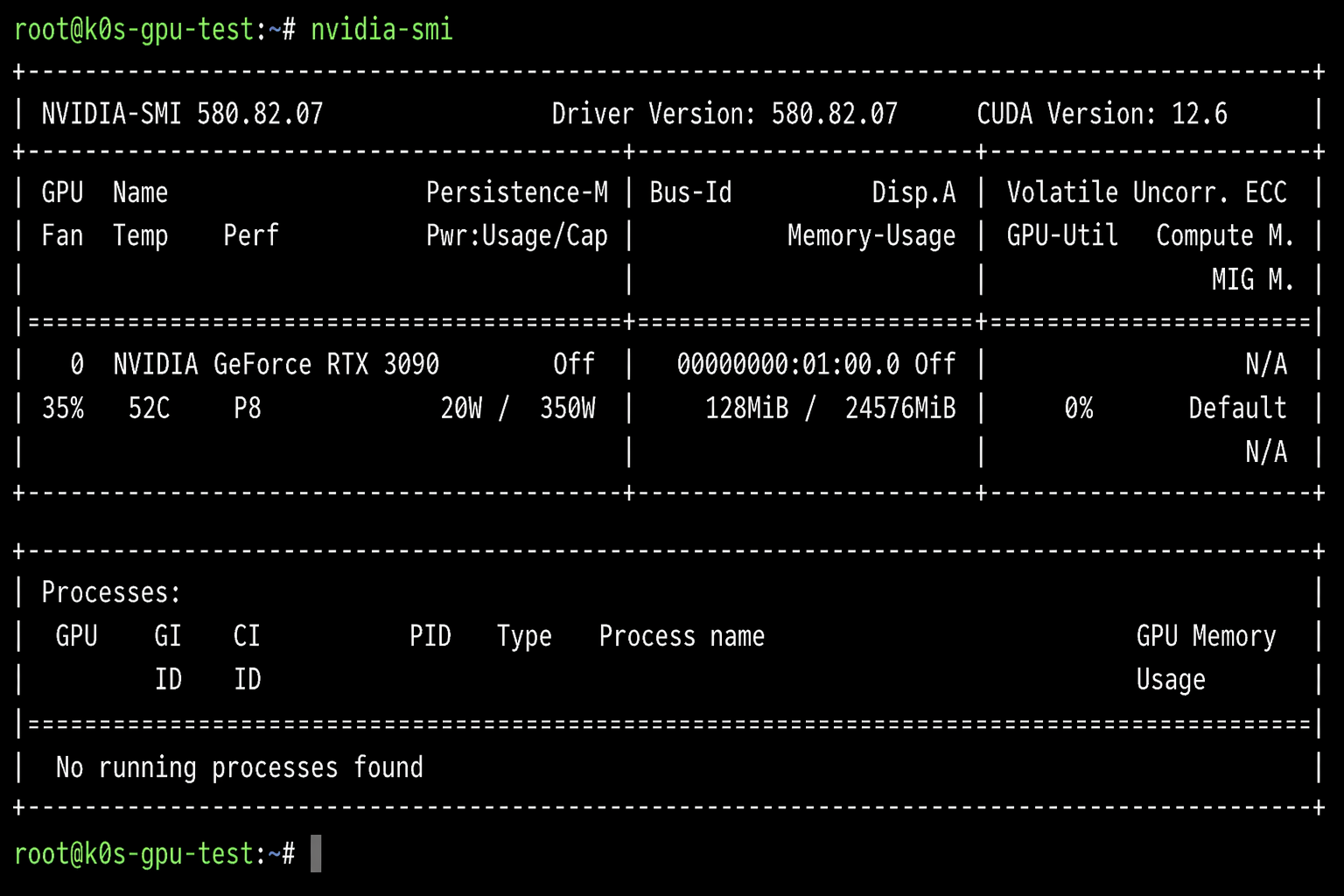
You should see your GPU listed with its driver version and memory. If nvidia-smi returns output, the kernel module is loaded and the driver is functional.
If you prefer to let the GPU Operator manage the driver container instead, skip this step and omit --set driver.enabled=false from the Helm install command in Step 2.
Step 2: Deploy the NVIDIA GPU Operator via Helm
The GPU Operator is the recommended installation path in the k0s runtime documentation. It deploys as a set of daemonsets that collectively manage the full NVIDIA software stack on each GPU node.
The critical difference from a standard Kubernetes install is that k0s uses non default paths for its containerd socket and configuration. The GPU Operator toolkit must be told about these paths explicitly. Using the defaults causes the toolkit to write to the wrong locations - the runtime never gets registered, and nvidia.com/gpu never appears as a schedulable resource.
Add the NVIDIA Helm repository:
helm repo add nvidia https://helm.ngc.nvidia.com/nvidia
helm repo update
Verify the chart is available:
helm search repo nvidia/gpu-operator
Install with the k0s-specific overrides:
helm install nvidia-gpu-operator \
  -n nvidia-gpu-operator \
  --create-namespace \
  --version v26.3.1 \
  --set operator.defaultRuntime=containerd \
  --set toolkit.env[0].name=CONTAINERD_CONFIG \
  --set toolkit.env[0].value=/etc/k0s/containerd.d/nvidia.toml \
  --set toolkit.env[1].name=CONTAINERD_SOCKET \
  --set toolkit.env[1].value=/run/k0s/containerd.sock \
  --set toolkit.env[2].name=CONTAINERD_RUNTIME_CLASS \
  --set toolkit.env[2].value=nvidia \
  --set driver.enabled=false \
  nvidia/gpu-operator
What the three overrides do:
CONTAINERD_CONFIG- points the toolkit to/etc/k0s/containerd.d/nvidia.tomlinstead of the default/etc/containerd/config.tomlCONTAINERD_SOCKET- points to/run/k0s/containerd.sockinstead of/run/containerd/containerd.sockCONTAINERD_RUNTIME_CLASS- sets the RuntimeClass name registered in Kubernetes
Wait for the operator components to come up:
kubectl -n nvidia-gpu-operator get pods -w
The toolkit pod configures containerd and completes. The device plugin and feature discovery pods remain running. Once all pods reach Running or Completed, proceed to verification.
Step 3: Verify GPU Resources Are Visible
Check that the node is advertising GPU capacity to the scheduler:
kubectl describe node | grep -A10 "Capacity:"
You should see:
nvidia.com/gpu: 1
Verify the containerd drop-in was written correctly:
cat /etc/k0s/containerd.d/nvidia.toml
This file is written by the toolkit daemonset and registers the NVIDIA runtime with k0s’s containerd.
Check the RuntimeClass:
kubectl get runtimeclass
Expected output:
NAME     HANDLER   AGE
nvidia   nvidia    5m
The GPU Operator creates this RuntimeClass automatically. No manual apply required.
Step 4: Deploy AI Workloads
With the operator running and GPU resources registered, scheduling a GPU pod works the same as any other Kubernetes workload - express the resource requirement, and the scheduler handles placement.
Inference: Ollama on a GPU Pod
Ollama provides a straightforward way to run open weight models on local hardware. This runs it as a pod on the GPU node.
kubectl apply -f - <<EOF
apiVersion: v1
kind: Pod
metadata:
  name: ollama-gpu
spec:
  runtimeClassName: nvidia
  containers:
  - name: ollama
    image: ollama/ollama:latest
    resources:
      limits:
        nvidia.com/gpu: 1
    ports:
    - containerPort: 11434
    volumeMounts:
    - name: ollama-data
      mountPath: /root/.ollama
  volumes:
  - name: ollama-data
    emptyDir: {}
  restartPolicy: Never
EOF
Wait for the pod to reach Running:
kubectl get pod ollama-gpu -w
Pull a model and run a prompt:
kubectl exec -it ollama-gpu -- ollama run llama3.2 "Explain GPU memory bandwidth in one sentence."
Training: PyTorch GPU Job
This runs a matrix multiplication benchmark to confirm CUDA is accessible inside the container. It is a fast, unambiguous validation before running real training workloads.
kubectl apply -f - <<EOF
apiVersion: batch/v1
kind: Job
metadata:
  name: pytorch-gpu-test
spec:
  template:
    spec:
      runtimeClassName: nvidia
      restartPolicy: Never
      containers:
      - name: pytorch
        image: pytorch/pytorch:2.10.0-cuda12.8-cudnn9-runtime
        resources:
          limits:
            nvidia.com/gpu: 1
        command:
        - python3
        - -c
        - |
          import torch
          print(f"CUDA available: {torch.cuda.is_available()}")
          print(f"Device: {torch.cuda.get_device_name(0)}")
          a = torch.randn(4096, 4096, device='cuda')
          b = torch.randn(4096, 4096, device='cuda')
          c = torch.matmul(a, b)
          print(f"Matrix multiply complete. Result shape: {c.shape}")
EOF
Check the output:
kubectl logs job/pytorch-gpu-test
Expected output:
CUDA available: True
Device: NVIDIA GeForce RTX 3090
Matrix multiply complete. Result shape: torch.Size([4096, 4096])
Troubleshooting
Pod stuck in Pending: “Insufficient nvidia.com/gpu”
The device plugin has not registered the resource yet or is not running.
kubectl -n nvidia-gpu-operator get pods
kubectl -n nvidia-gpu-operator logs daemonset/nvidia-device-plugin-daemonset
CUDA not available inside the pod
Check that the RuntimeClass exists and the toolkit drop-in was written correctly.
kubectl get runtimeclass
cat /etc/k0s/containerd.d/nvidia.toml
sudo journalctl -u k0scontroller -n 50
Driver version mismatch
The CUDA version in the container image must be compatible with the host driver.
nvidia-smi | grep "Driver Version"
Match your base image to the supported CUDA version for that driver. NVIDIA publishes the driver to CUDA compatibility matrix in their release notes. A mismatch produces errors inside the container that have nothing to do with Kubernetes.
Use Cases
GPU on k0s is well suited for:
- Private inference endpoints - run open weight models on prem with no data leaving the network
- Fine-tuning pipelines - schedule training Jobs with explicit GPU resource limits
- Edge AI - Jetson devices, factory servers, retail hardware, anywhere you have a GPU but not a cloud account
- Development clusters - a single node k0s install on a workstation with a consumer GPU covers most experimentation
- Airgapped environments - k0s ships as a single binary; offline driver installs and pre loaded images are straightforward
- Cost-sensitive inference - time slicing allows multiple models to share one GPU without requiring MIG hardware
Conclusion
Put simply: 5 minutes, 5 commands, 5 steps and you have a fully working GPU-accelerated Kubernetes cluster. The nvidia-gpu-operator handles node labeling, DCGM metrics, and driver lifecycle you get to focus on the workload.
That covers the single cluster story. If you need GPU infrastructure across multiple regions, multiple clouds, or multiple teams, consistent configuration, declarative lifecycle, one control plane that is a different and bigger problem. We will cover it in the next post, where we go hands on with k0rdent for multi cluster GPU fleet management.